Articles
- Professional HDR Images
- Lomo Photography
- Color Correction
- Advanced Photo Sharpening
- Controlled Image Sharpening
- Dynamic Lighting
- Vanishing Point Filter
- Stitch-Photos
- Facial Retouching
- Photorealistic Coloring
- Removing Objects From Photos
- Black and White
- Change Hair Color
- Advanced Skin Softening
- Red Eye Tool
- Whitening Teeth & Eyes
- Age Progression
- Paint Lip Gloss
- Contrast Layers
- Illustration Vector Effect
- Using Ink Drops
- Light effects
- Colorful Picture Style
- Vector Portraits
- Vector Composite Effect
- Star Diffusion
- Photo Restoration
- Black and white portrait
- Selecting and extracting hair
Videos
Photo to illustration Vector Effect
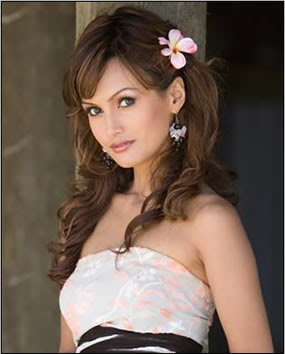
Step 1: First I will start with an image.
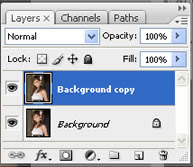
Step 2:Duplicate the Background layer.
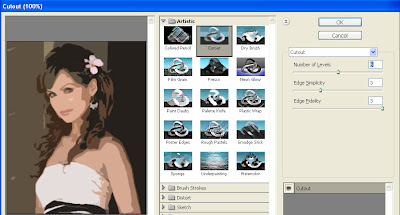
Step 3: Now apply the Cutout filter (Filter => Artistic => Cutout). On the left side the amount of detail in the vector can be controlled by adjusting the Number of Levels, Edge Simplicity and Edge Fidelity sliders. For this example I am using 5 levels, with the Edge Simplicity set to 3 and Edge Fidelity set to 3. Click OK.
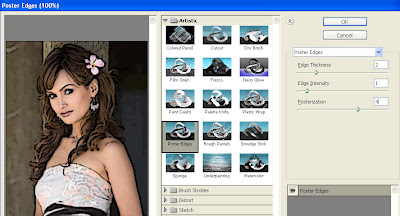
Step 4: You can trace the areas of color divided by the Cutout filter with the Poster Edges Filter. For this example the Edge Thickness is set to 2, Edge Intensity to 1 and Posterization to 4. Click OK.
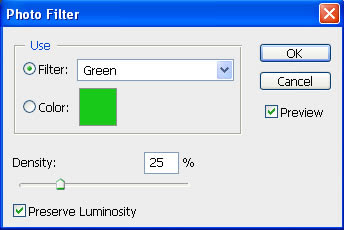
Step 5: The color can be changed subtly with a Photo Filter adjustment layer.
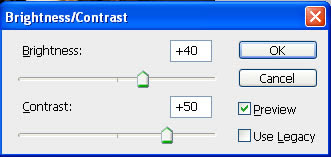
Step 6: And finally, to add to the ‘colored’ effect, a Brightness/Contrast adjustment layer will help take away the natural highlights/shadows even more.
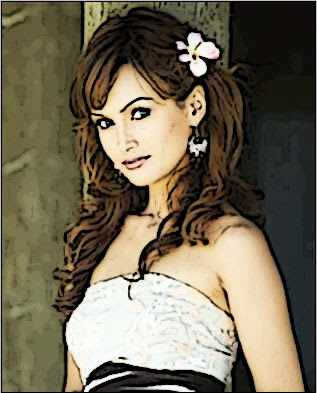
Step 7: Here is my final vector image:
Source: http://nicetutz.blogspot.com/2008/12/photo-to-illustration-vector-effect.html